
Turning on App Lock
- In the mobile app, tap Menu.
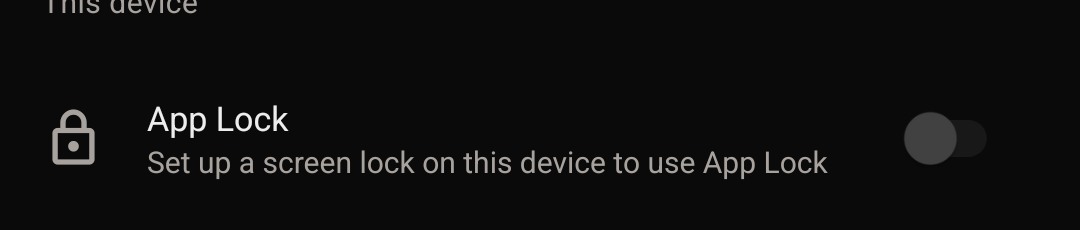
- Turn on App Lock.
- Unlock once to confirm it's you.
App Lock uses whatever your phone already has. On Android, that's your fingerprint, face unlock, or your screen lock (a PIN, pattern, or password). There's nothing new to set up inside FutureRoots itself.
What App Lock does and does not do
With App Lock on, the app asks you to unlock it when you first open it and again if it's been in the background for a little while. If your phone has no screen lock set up at all, App Lock can't turn on, since there's nothing for it to check against, and the row reads Set up a screen lock on this device to use App Lock. Setting a screen lock is done in your phone's own settings, not in FutureRoots.
App Lock only covers the app on that phone. It doesn't sign you out, and it doesn't change how you sign in on the website.